
Screenshots
Every image on this page was captured from a real, running stack — the panel, PowerDNS 4.9 and PostgreSQL, with a small demo estate seeded through the panel's own forms. Nothing here is a mock-up. Regenerate them yourself in one command. Click any image to open it at full size.
Sign in
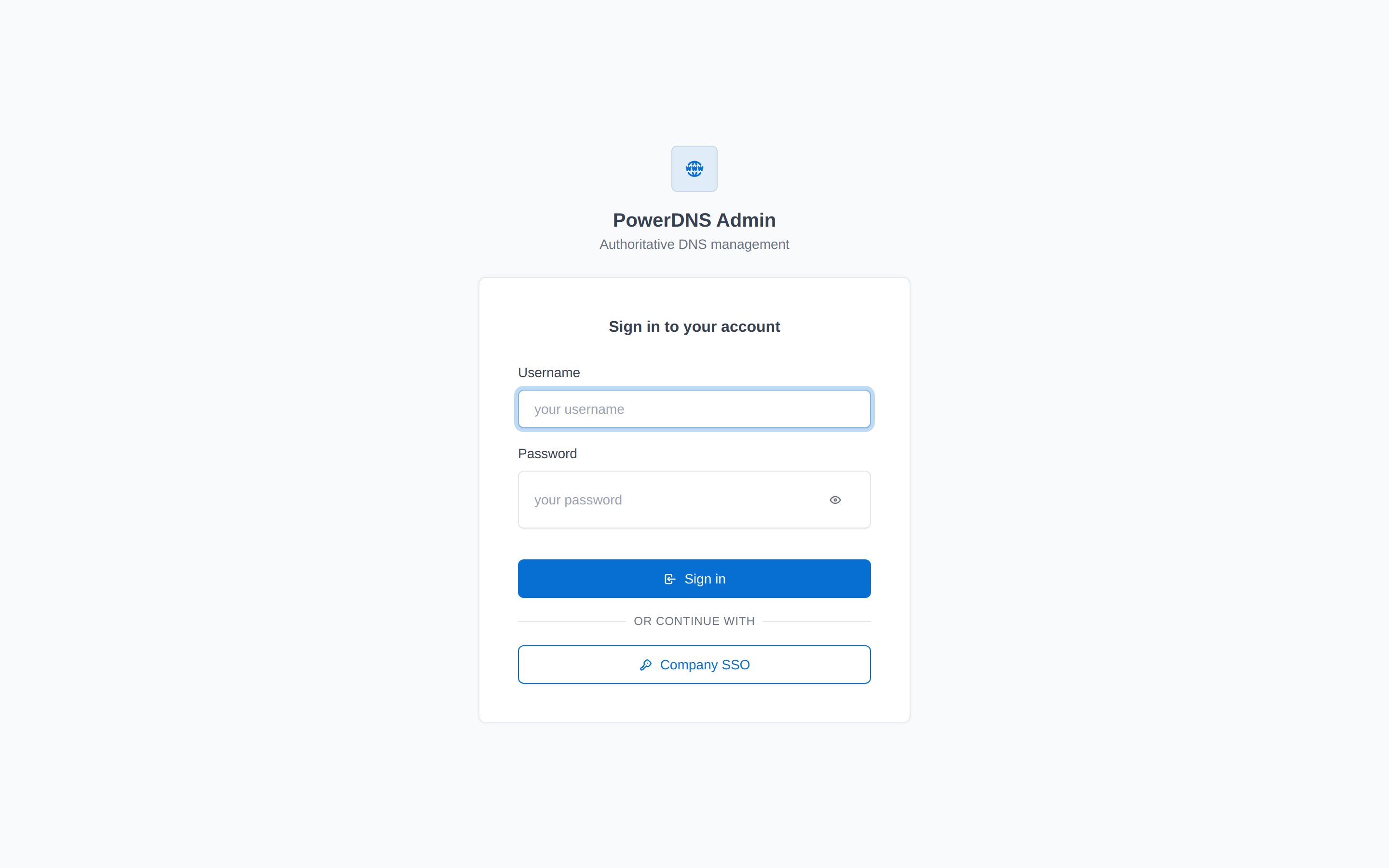
The local sign-in form, with one OAuth provider configured — every enabled provider gets a button under or continue with. Turning off LOCAL_AUTH_ENABLED removes the username and password fields entirely, so everyone goes through the identity provider.
Dashboard
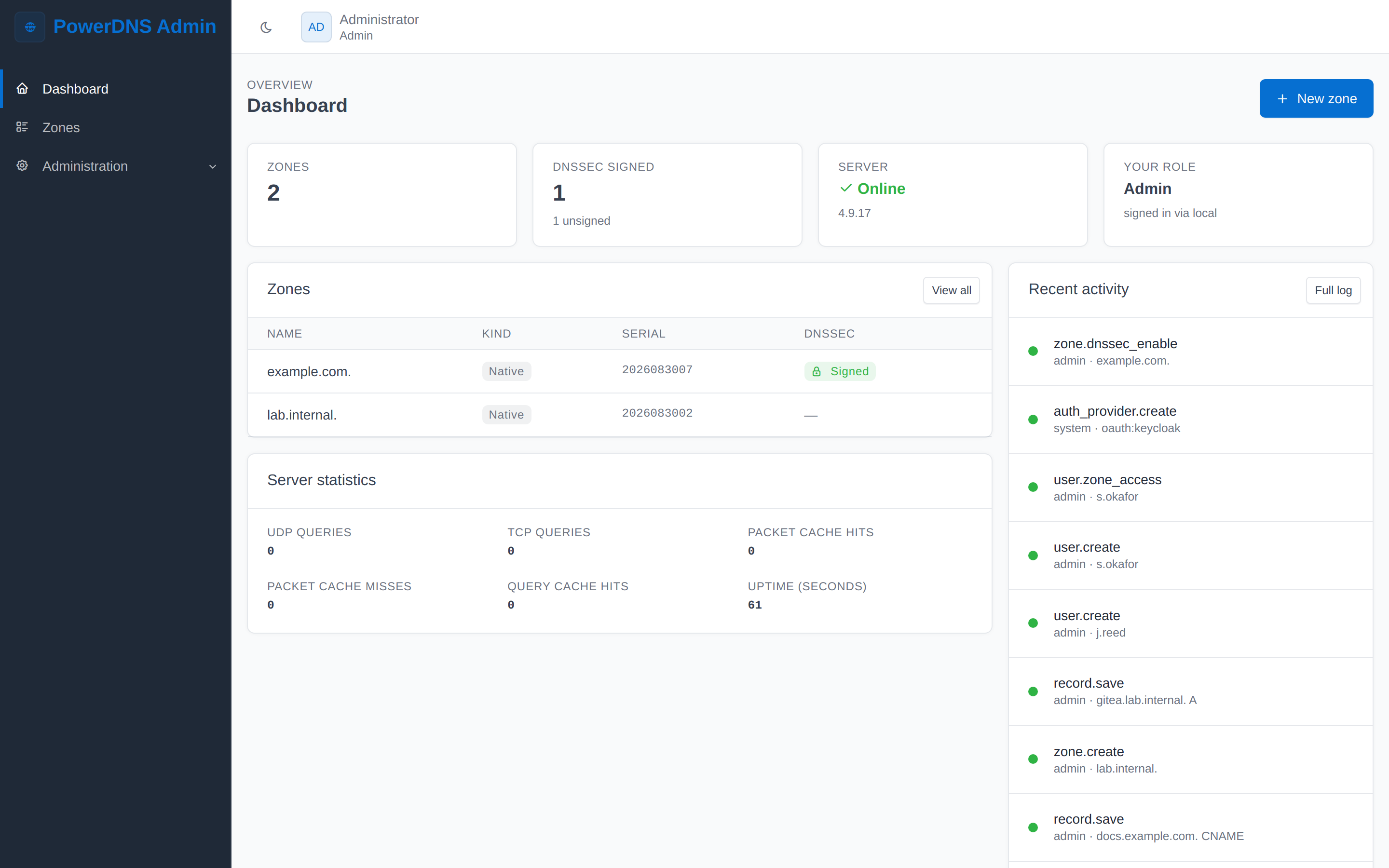
The landing page answers the questions you actually have on arrival: how many zones are there, how many are signed, is PowerDNS answering, and what has changed recently. Server shows the version PowerDNS reports — if the API is unreachable, this card says so and the rest of the panel keeps working.
The statistics come straight from PowerDNS: query counts, cache hits and misses, and uptime. Recent activity is the last ten audit entries, and is shown to administrators only.
Zones
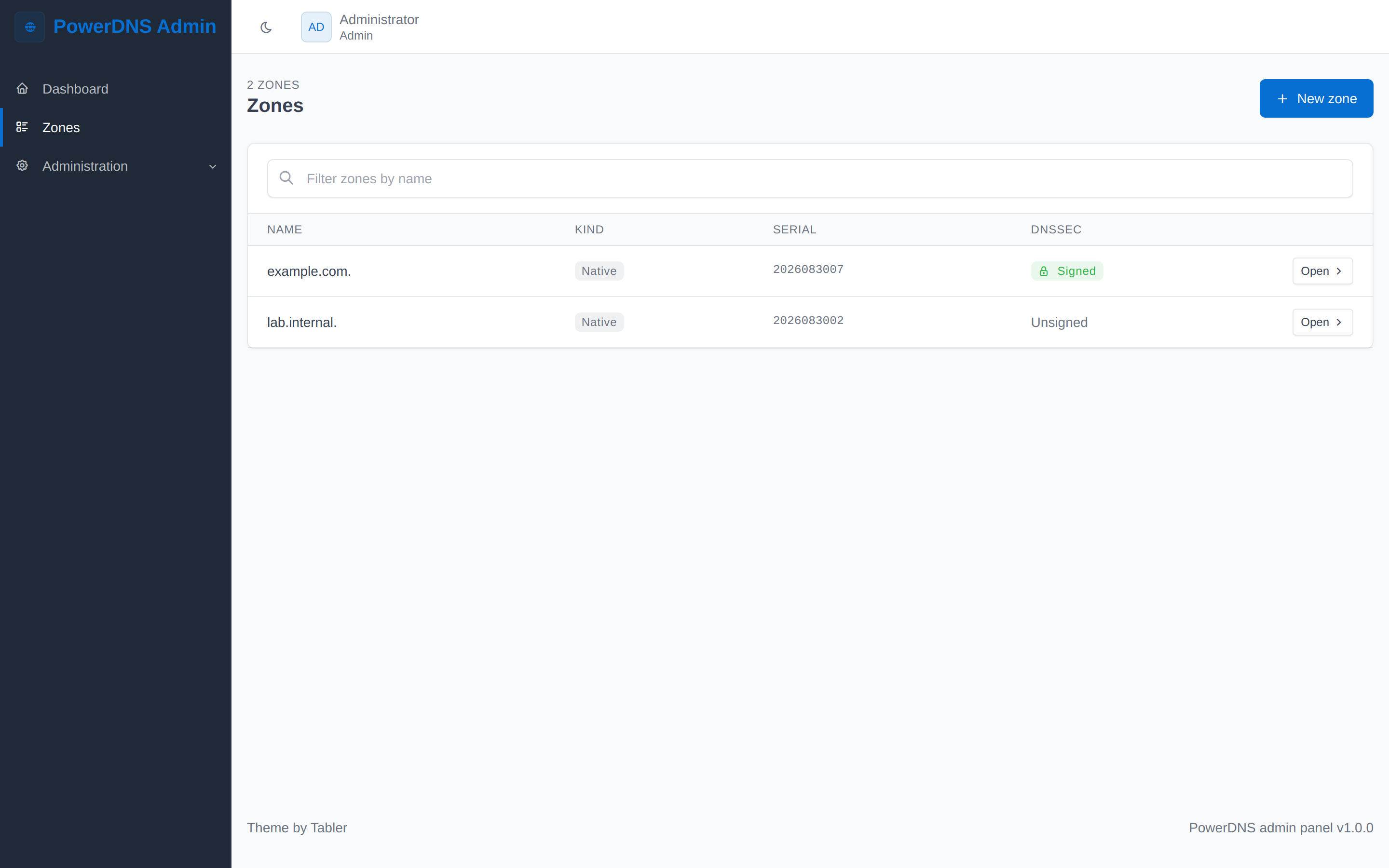
Every zone you are allowed to see, with its kind, current SOA serial and whether it is signed. A plain user sees only the zones granted to them; operators and admins see all of them. The search box narrows the list by name.
Creating a zone
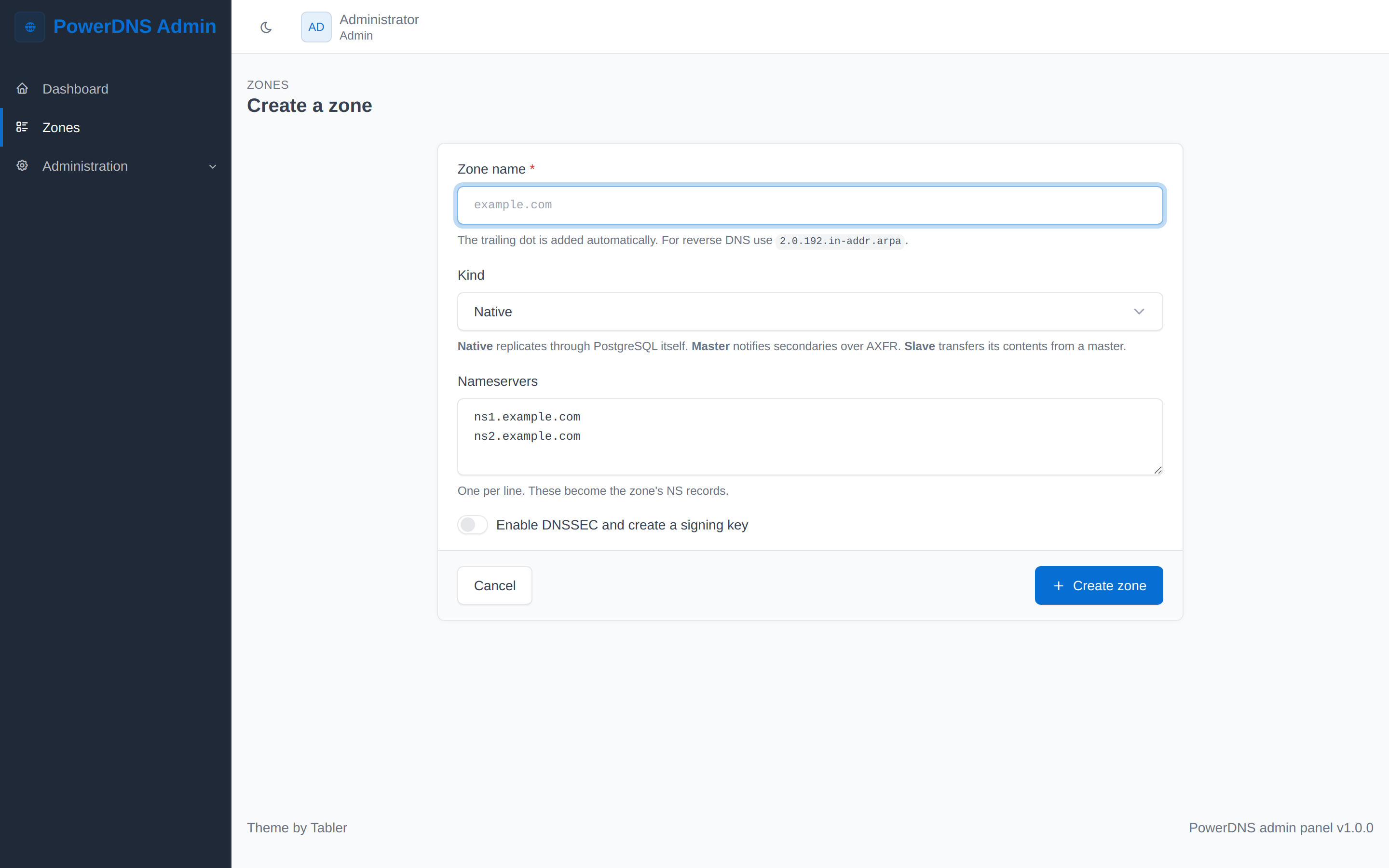
Name, kind and nameservers. The nameserver box is pre-filled from DEFAULT_NAMESERVERS, so the common case is name-in, create-out. Choosing Slave swaps the nameserver field for the master addresses, because a slave takes its records from the master.
Ticking Enable DNSSEC signs the zone at creation instead of as a second step.
Editing a zone
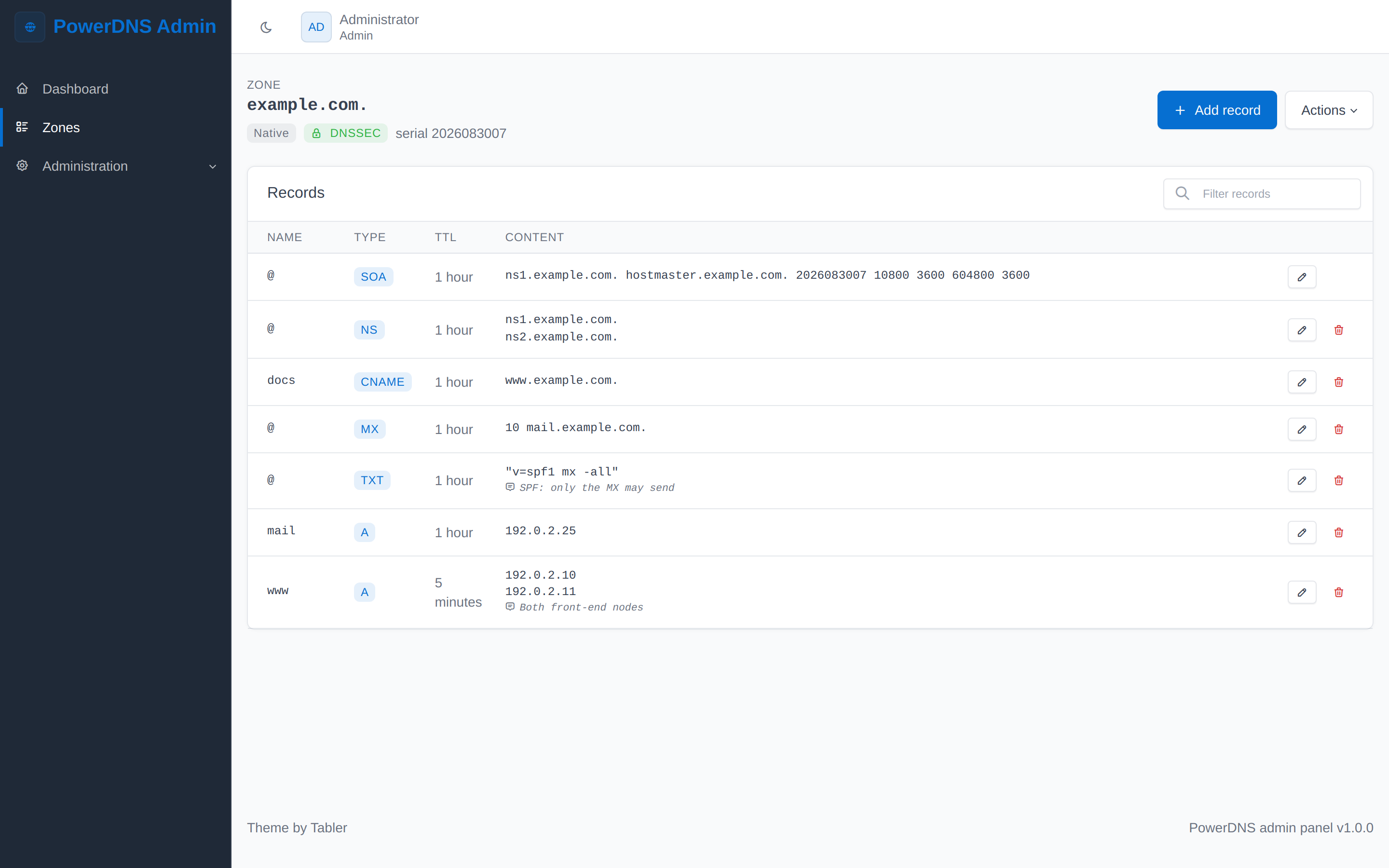
Records are grouped into sets — one row per name and type, with every value in that set beneath one another. SOA and NS are pinned to the top, the rest is alphabetical, and the TTL is shown in human terms (5 minutes, 1 hour) rather than as a bare number of seconds.
Comments live with the record, so why a record exists survives the person who added it. Filter records narrows a long zone as you type, and the Actions menu holds export, NOTIFY, retrieve-from-master and zone deletion.
The record editor
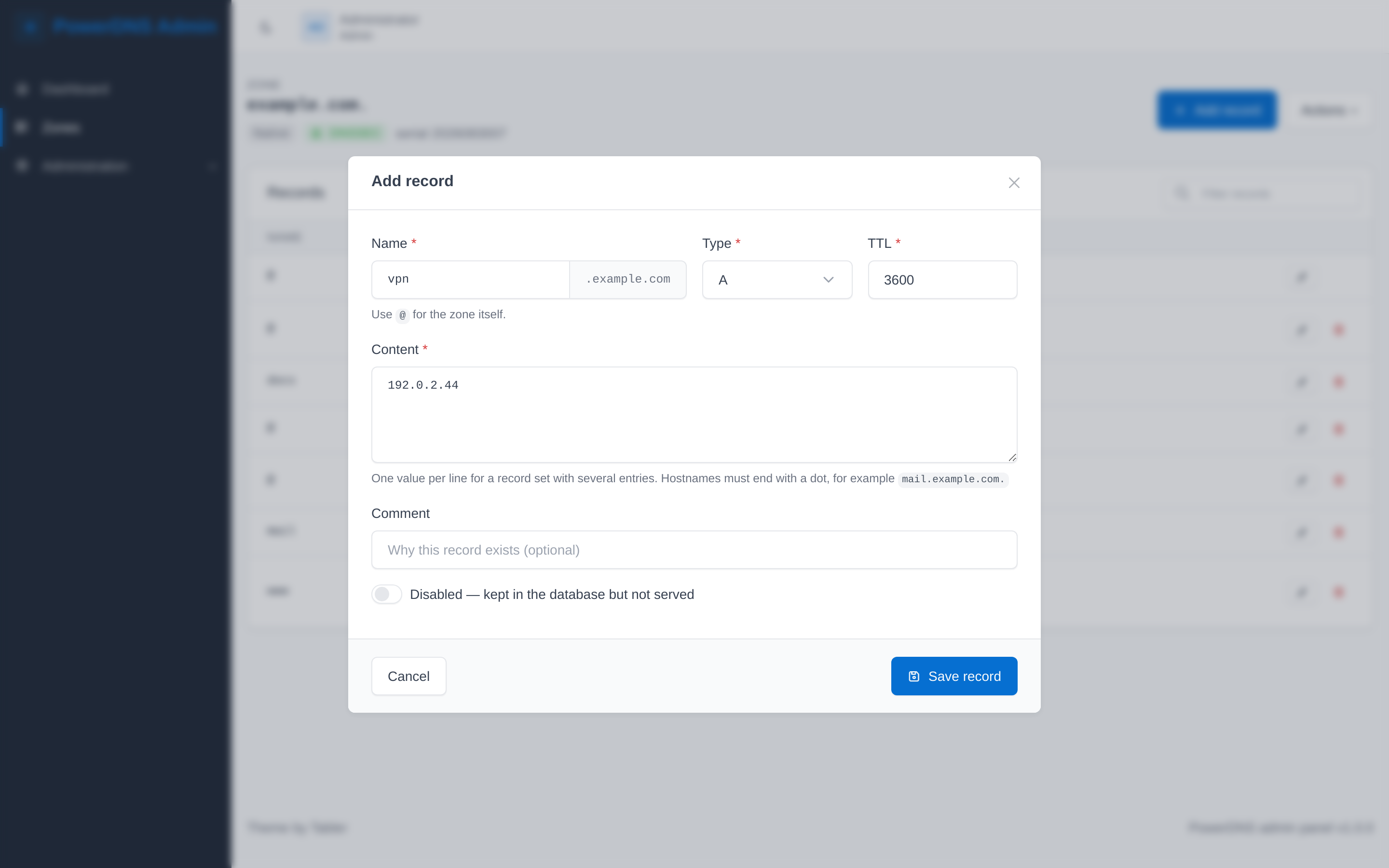
One value per line makes a record set with several entries — two A records for www are two lines here, not two visits to this dialogue. The zone suffix is shown next to the name field so you can see what you are actually creating, and @ means the zone apex.
Disabled keeps a record in the database without serving it, which is the reversible way to take something out of DNS.
DNSSEC
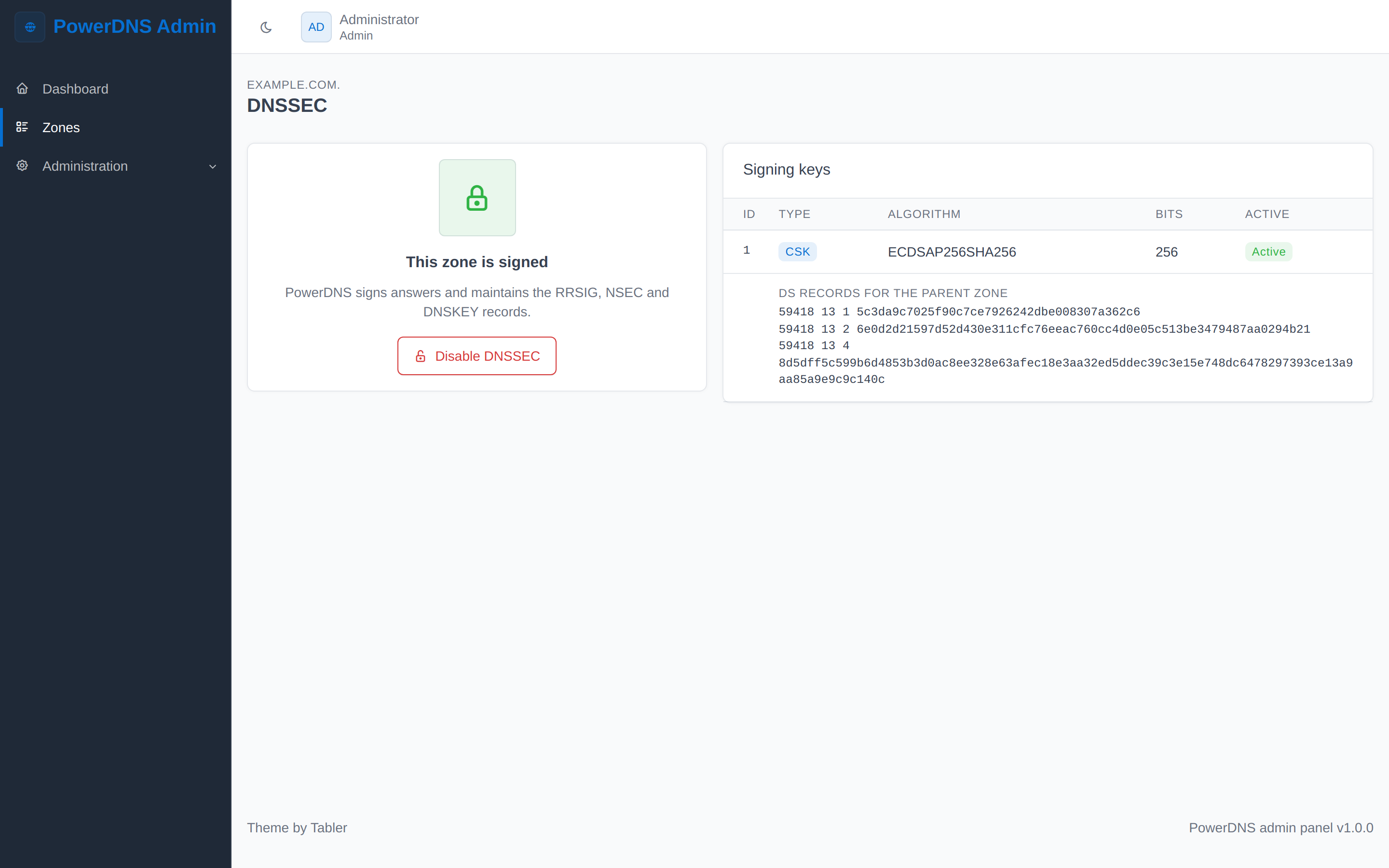
Enabling DNSSEC turns on signing and creates an active combined signing key in one step — a zone marked signed with no key would serve broken answers.
The DS records shown here are what you hand to your registrar or parent zone; until they are published, the zone is signed but not yet part of the chain of trust. PowerDNS maintains the RRSIG, NSEC and DNSKEY records itself, which is why they are read-only in the record table.
Forwarding
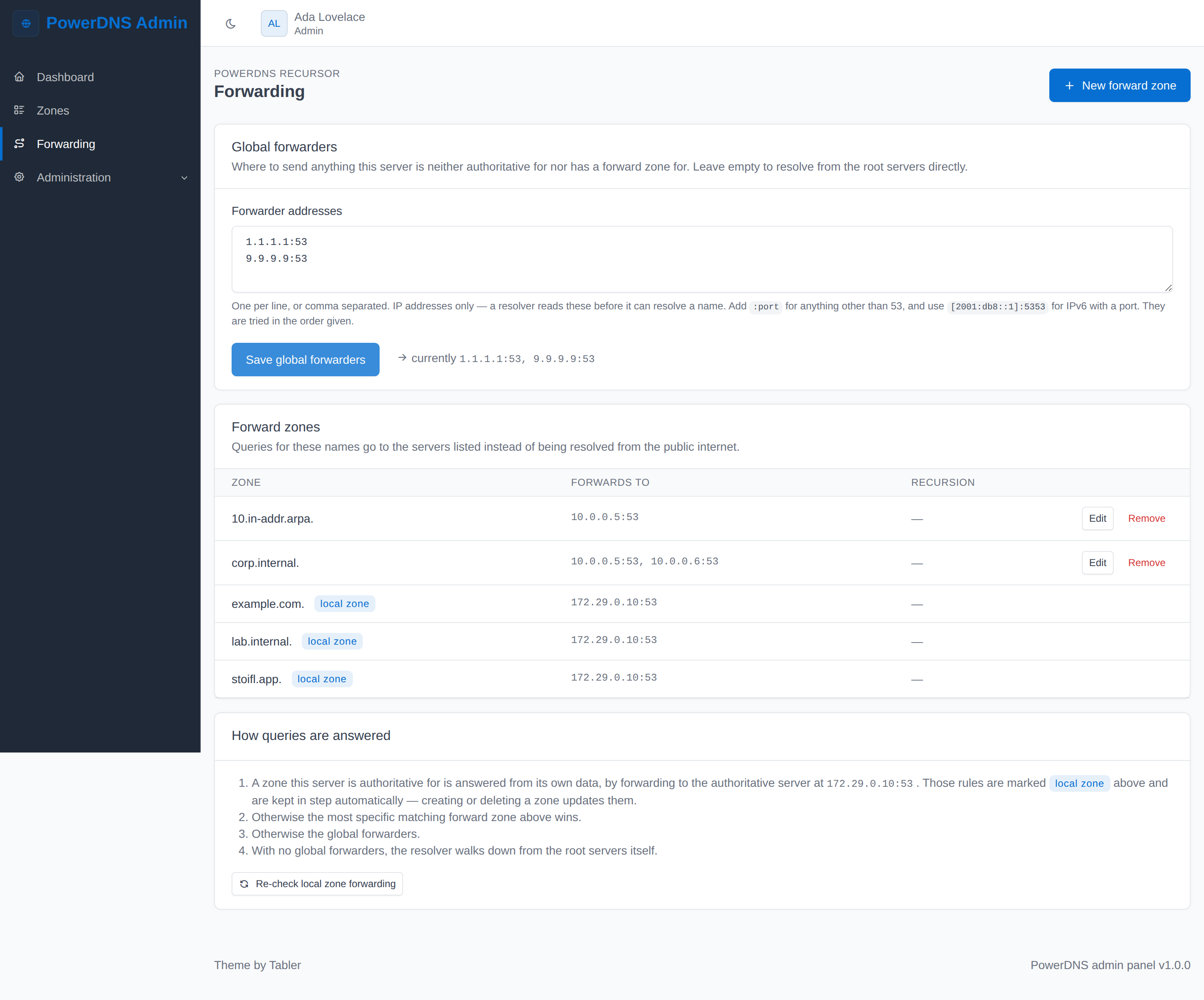
Where queries go when they are not for a zone this server holds. Global forwarders catch everything with no more specific rule; a forward zone sends one namespace — an internal domain, a reverse zone, an Active Directory domain — to particular servers.
The rules marked local zone are maintained for you: the recursor is what clients query, so each zone the authoritative server holds needs one pointing back at it. Creating or deleting a zone updates them.
Forwarders are IP addresses, not host names. A resolver reads them before it is able to resolve anything, so a name there would produce a zone that silently never answers — the form says so rather than saving it.
Users
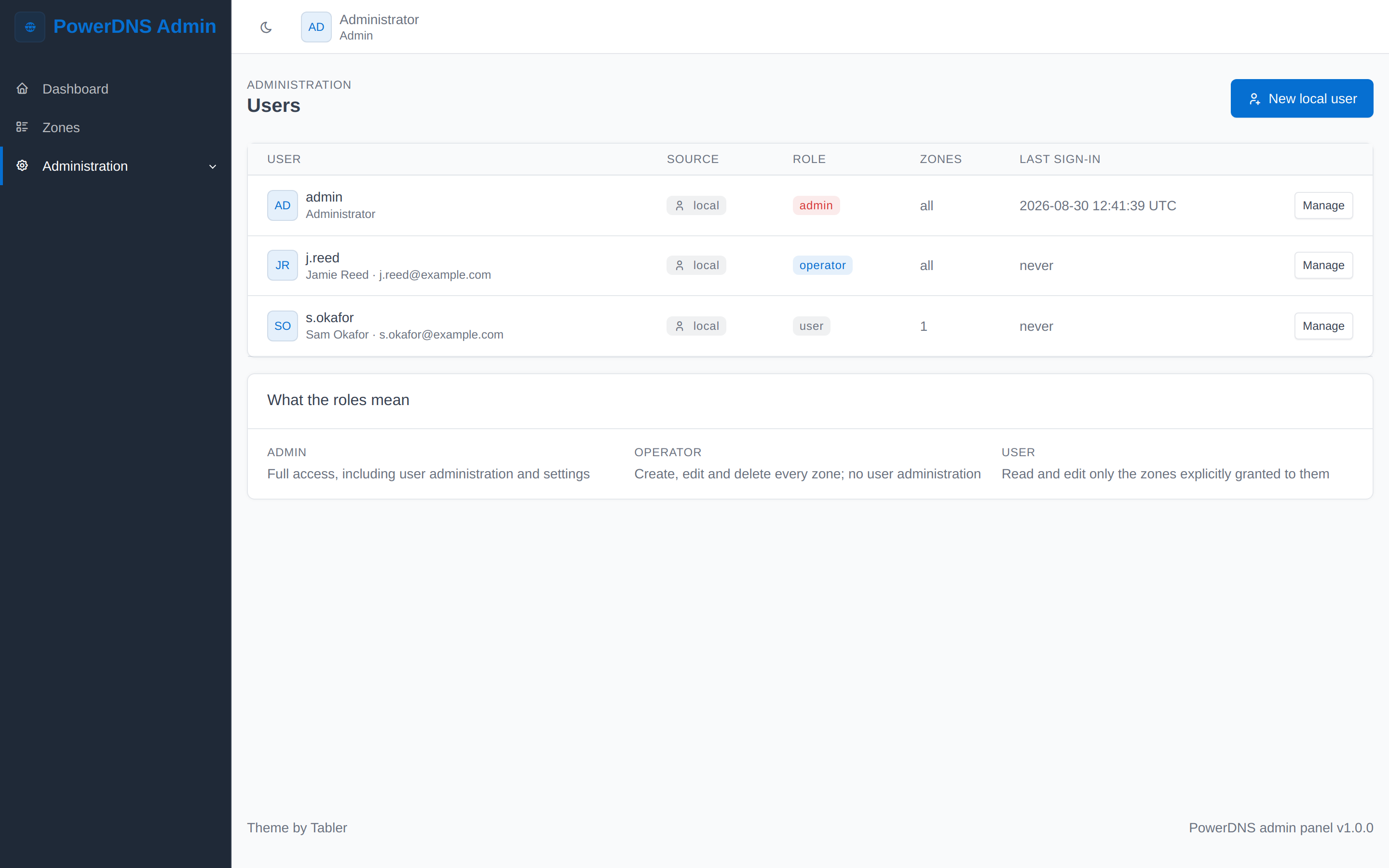
Who can sign in, where each account came from (local, ldap, oauth, saml), what role they hold, how many zones they can reach and when they last signed in. Accounts from an identity provider appear here too, created on their first sign-in.
The role reminder underneath is deliberate: choosing between operator and user is the decision people get wrong, so the consequences are written next to the choice.
Sign-in providers
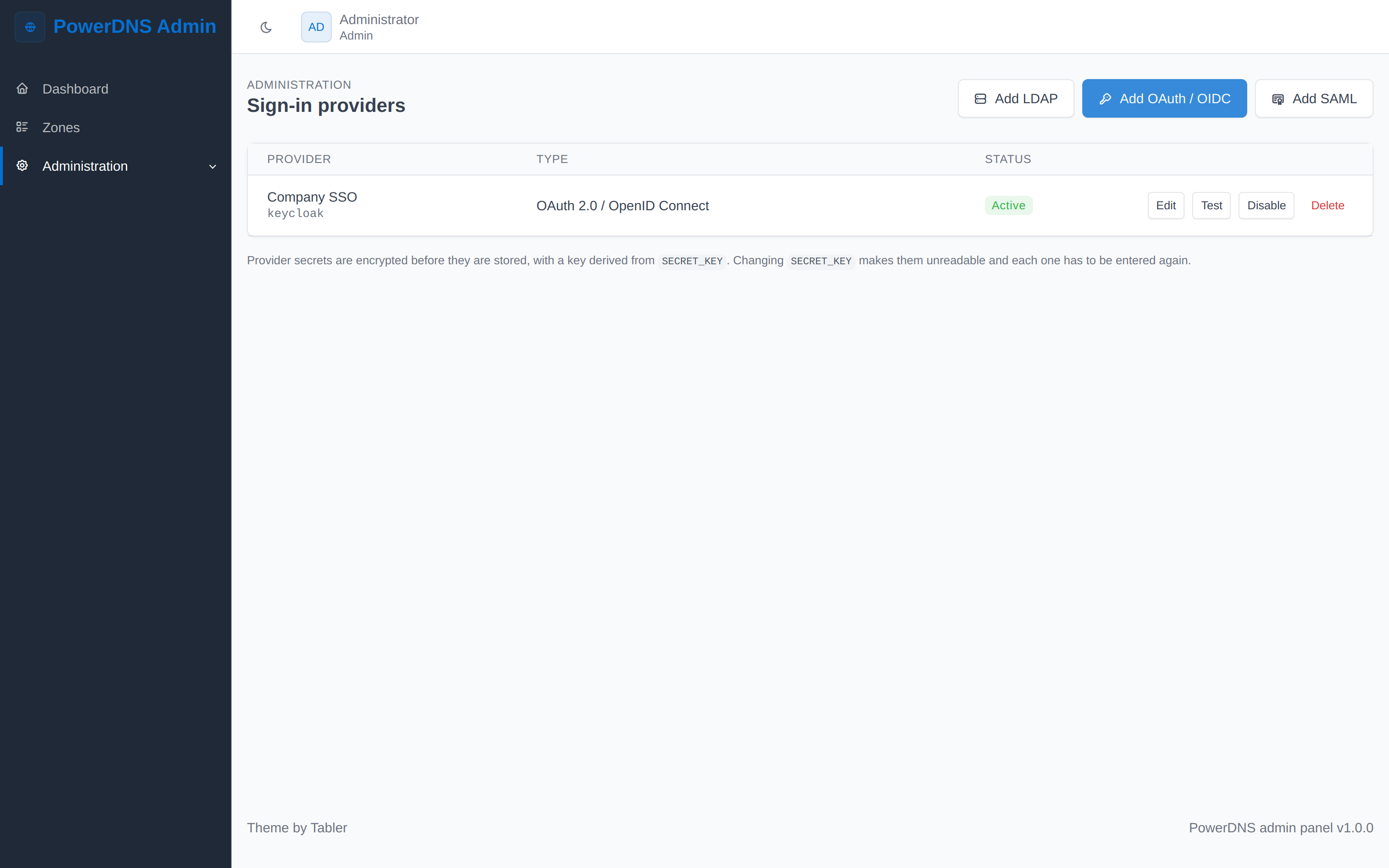
LDAP, OAuth/OpenID Connect and SAML providers, managed at runtime — no restart, no redeploy. Test contacts the provider immediately, so a new one is verified without asking someone to attempt a sign-in and report what happened.
Providers declared in .env also appear here, listed read-only: the environment always wins, and a database entry that collides with one is ignored and labelled Shadowed.
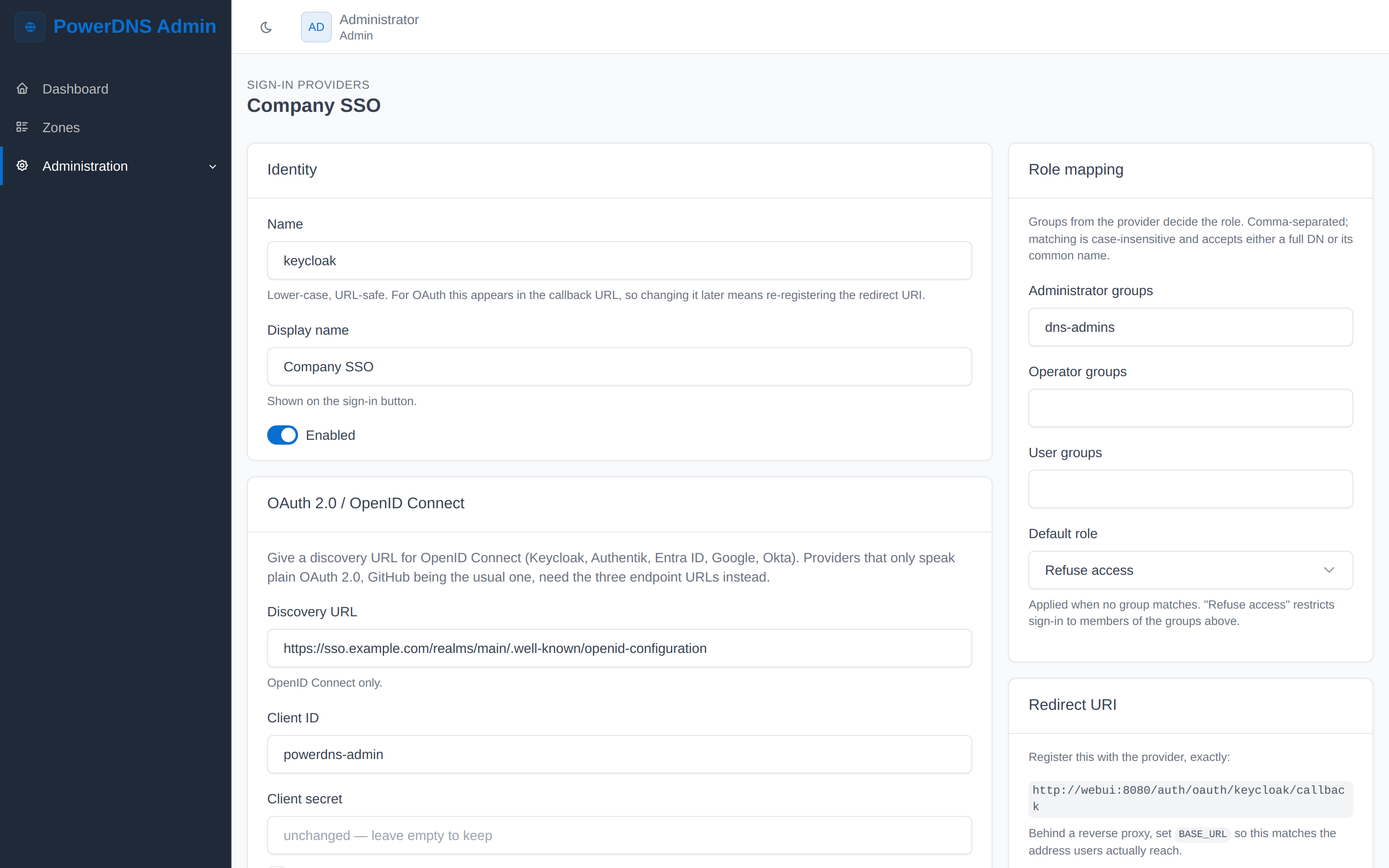
One discovery URL is enough for an OpenID Connect provider; the endpoint fields below are for providers that only speak plain OAuth 2.0. Role mapping sits beside the settings it affects, and Refuse access as the default role is what limits sign-in to members of the mapped groups.
Secrets are write-only: the field shows unchanged — leave empty to keep, so a URL can be corrected without having the client secret to hand, and an explicit Clear the stored value checkbox is the only way to remove one. They are encrypted before storage with a key derived from SECRET_KEY.
Set BASE_URL
The Redirect URI card shows the callback to register with the provider. This capture is from a stack reached at its container name, which is why it reads http://webui:8080/…; behind a reverse proxy, set BASE_URL so the panel hands the provider the address users actually reach.
Audit log
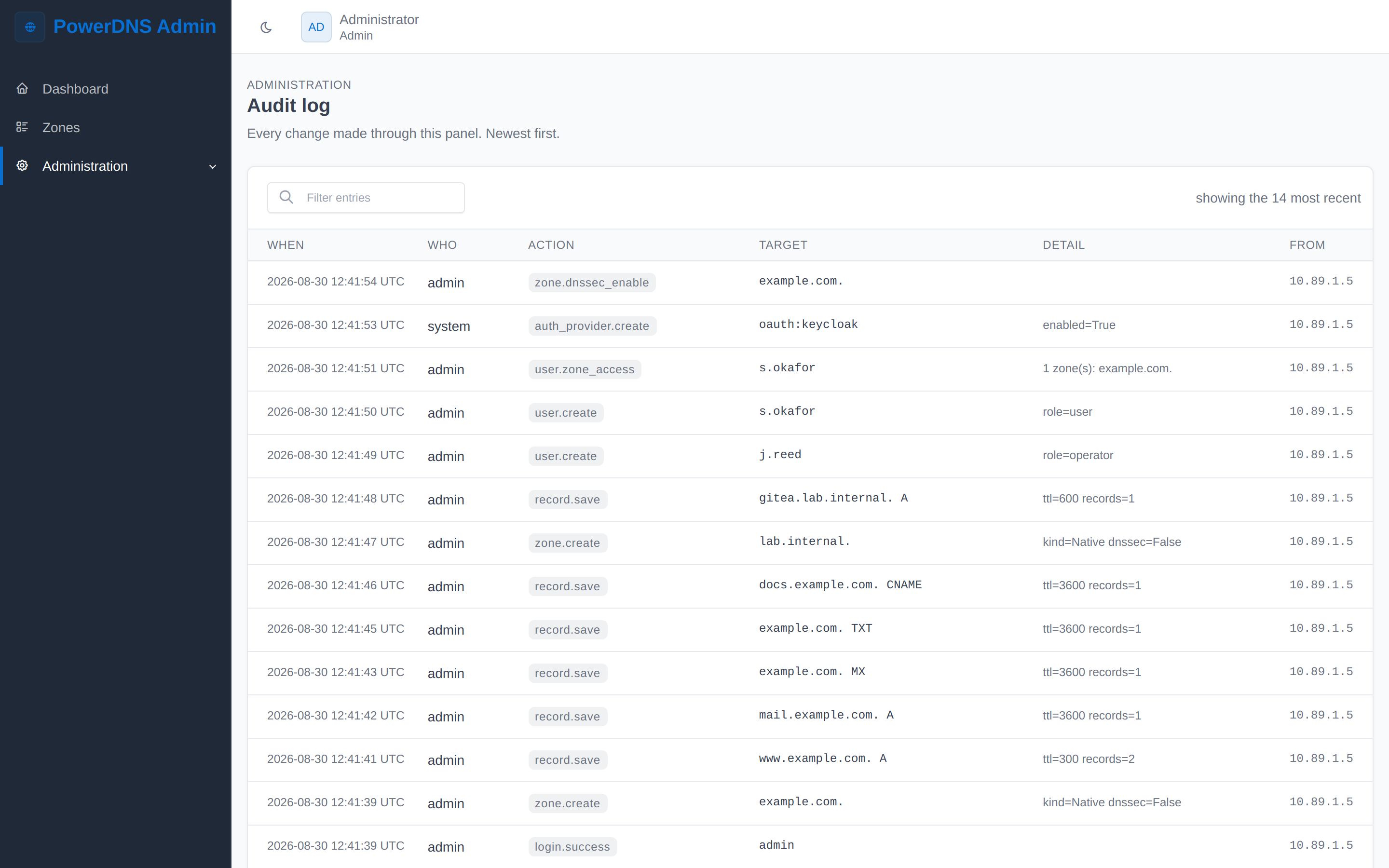
Every state-changing action, newest first: who, what, to which target, with what detail, and from which address. Failed attempts are recorded as well as successful ones.
Entries outlive the accounts that produced them — deleting a user does not erase their history.
My profile
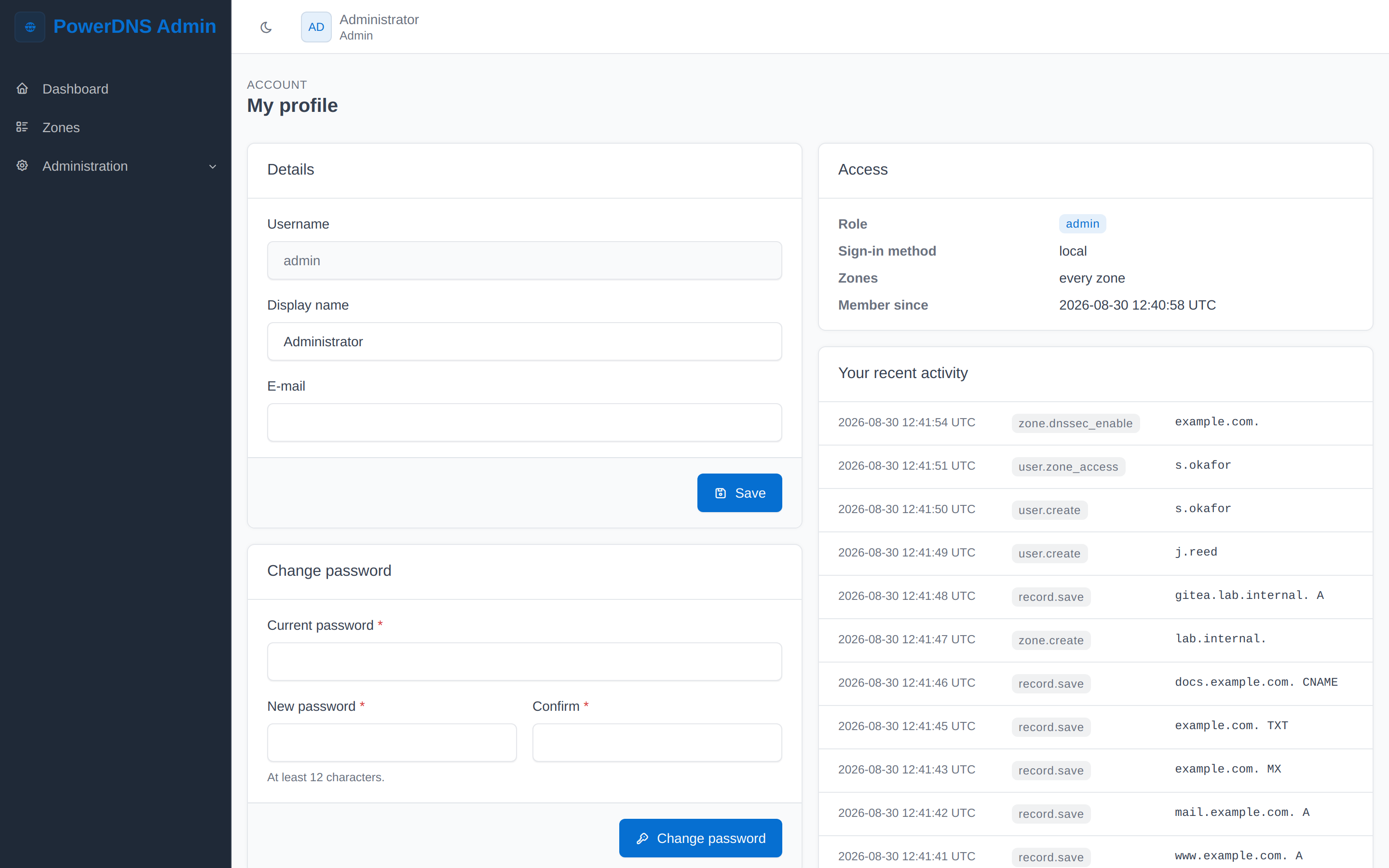
Everyone gets this page: their own details, a password change, and a summary of what their account can reach — role, sign-in method, and how many zones. The activity list is their own audit entries, so people can see what they did without needing the administrator's log.
The password form is where the first-run administrator changes the password the setup script printed. For accounts that come from LDAP, OAuth or SAML, both forms are replaced by a note naming the provider: those details are owned by the identity provider and refreshed at every sign-in, so editing them here would be misleading.
Settings
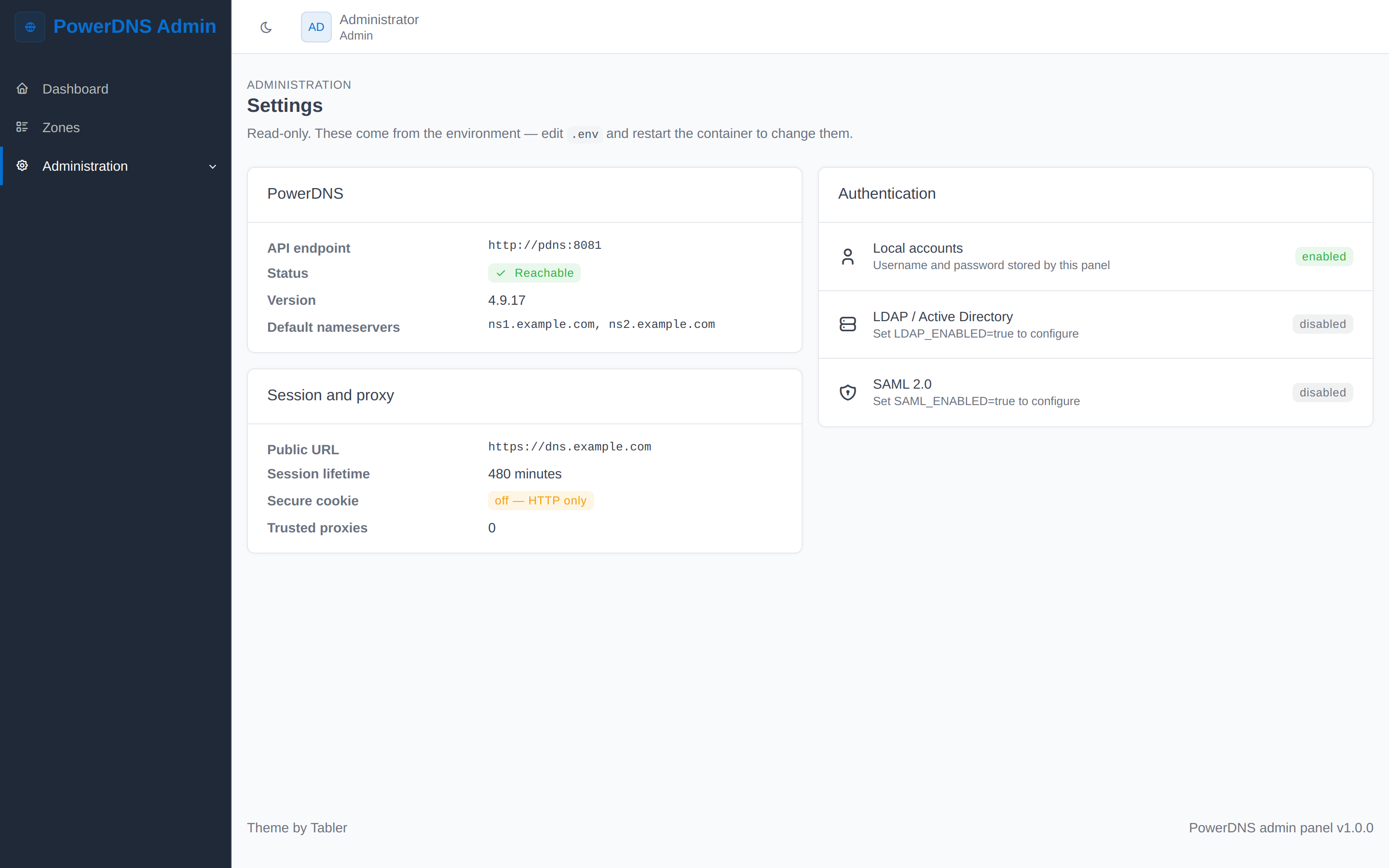
A read-only view of the running configuration: whether PowerDNS is reachable and which version it reports, the session lifetime, the cookie and proxy settings, and which authentication backends the environment enables. With OAuth or SAML configured there, this page also prints the exact redirect URI and metadata URL to register with the provider.
Nothing here is editable — these settings come from the environment, so the page reports the truth rather than keeping a second copy of it. Providers you can change at runtime live on their own page, above.
Regenerating these
The screenshots are produced by a script that drives the panel through its forms with Playwright, so the audit log in the captures is genuinely the result of the actions shown on the other pages.
Against a clean stack:
docker compose down -v && docker compose up -d --builddocker run --rm --network powerdns_backend \
-v "$PWD:/work" -w /work/docs \
-e ADMIN_PASSWORD="$(cat ../secrets/webui_admin_password)" \
mcr.microsoft.com/playwright:v1.50.0-noble \
sh -c 'npm i --no-save playwright@1.50.0 && node scripts/capture-screenshots.mjs'The script is docs/scripts/capture-screenshots.mjs. It seeds two zones, a handful of records, two extra users, an OAuth provider and one DNSSEC-signed zone, then writes the thirteen PNGs on this page into docs/public/screenshots/. Set PANEL_URL to http://127.0.0.1:9191 to run it from the host instead of on the compose network.